FBT Declaration Email
FBT Emailing Overview
Visit the Email Setup page for an overview of system email capabilities.
The FBT Declaration Advice Email and the FBT Declaration Email are part of a process to collect FBT odometer readings from drivers. Since March 2026, the FBT Declaration Email contains a single-use link that opens the FBT Declaration page, a standalone page where the driver enters their odometer reading. Drivers do not need to log in to Catch-e.
Drivers can be emailed en masse to collect periodic or annual odometer readings for FBT reporting. A number of system flags determine which drivers are sent an email.
You can also send this email to a driver from the Contracts / Events tab. Use this to collect an odometer reading at the end of a lease term, or to issue a new link to a driver.
You can send an FBT Declaration email to any driver with a valid email address. You'll see an alert if the Client and Contract settings would not allow the bulk FBT Declaration email to be sent to this driver.
FBT Declaration Email Reports Process
Go to Reporting / Standard Reports and run 'FBT Advice Email'. This gives drivers explanatory details ahead of time.
Go to System / Mail Queue and send the pending emails.
An FBTA event is created in Contract Events to store the Advice email.
Go to Reporting / Standard Reports and run 'FBT Declaration Email'.
Go to System / Mail Queue and send the pending emails. A unique link to the FBT Declaration page is created for each contract as the email is sent.
An FBTD event is created in Contract Events to store the Declaration email.
The driver clicks the link and enters their odometer reading. Odometer and date validations are performed.
The driver can keep using the link until the declaration has been submitted or the link has expired (see Link Expiry).
When the driver submits the declaration, an FBTC event is created in Contract Events, dated the day of submission, and a confirmation email is sent to the driver.
Warning: Only contracts where Contracts / FBT "FBT Email" is checked ON are included in the FBT Declaration Email process. Contracts set to OFF are excluded. However, an FBT contract event email can still be created and sent for them.
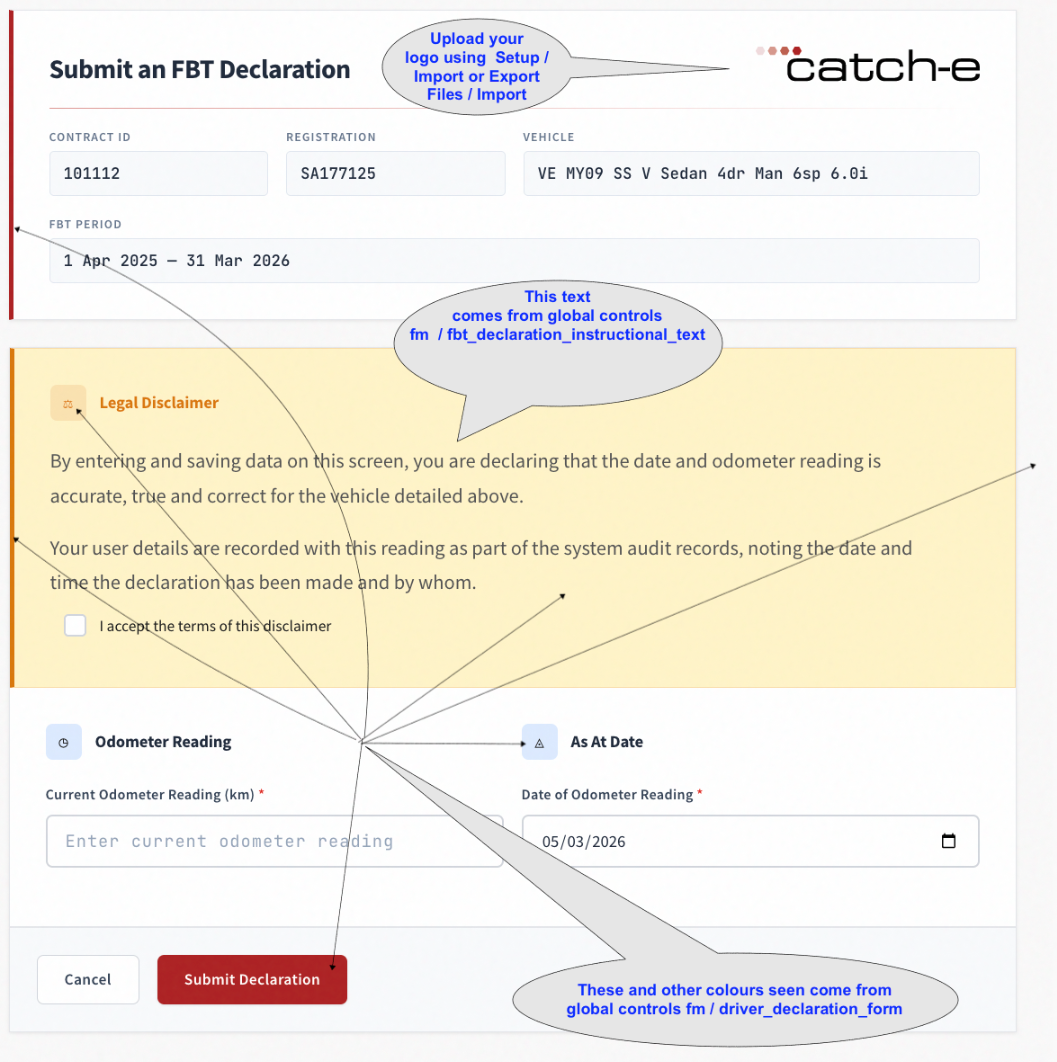
The FBT Declaration Page
When the driver opens their link, the FBT Declaration page shows the following:
Contract details. The Contract ID, Registration, Vehicle and FBT Period being declared. These are filled in automatically and can't be changed by the driver.
Legal Disclaimer. The declaration text and an "I accept the terms of this disclaimer" checkbox. The driver must tick this box before they can submit.
Odometer Reading. The driver enters their current odometer reading in kilometres.
As At Date. The date of the odometer reading. Both the reading and the date are required.
Submit Declaration and Cancel buttons. Cancel stops the submission without saving anything. The link stays active, so the driver can return and submit until the link expires.
The page can be tailored to your organisation:
If you don't have access to global controls, contact Catch-e Support to make these changes.
Duplicate Declaration Rule
To prevent the same odometer reading being declared twice, the FBT Declaration page checks for a recent declaration on the contract before showing the form.
The check uses the most recent active FBTC event on the contract.
If today is on or before that FBTC event date plus 4 calendar months, the driver sees the "already submitted" page instead of the form.
If more than 4 calendar months have passed, the form is shown.
The check is made when the driver opens the link and again when they submit the form.
Points to note:
The check is made per contract, not per driver. A declaration made by a previous driver on the same contract also counts, as does one entered by an internal user through the Declaration Screen.
Only FBTC events are checked. FBTD events (declaration requests) and the odometer "as at" date entered by the driver are ignored.
If the 4-month date falls on a day that doesn't exist in that month, the last day of the month is used. For example, 31/10/2025 plus 4 months is 28/02/2026.
Drivers cannot correct a declaration within the 4 months through the link. They should contact their Fleet Manager, who can update the reading in Catch-e.
Examples
Data and Sender (Set-up by Client)
Set Client, Contract Type and Contract Checkboxes
For a driver to receive a bulk FBT email, ALL of the following conditions must be met:
Fleet / Controls / Accounts / Contract Types / Details "FBT Email" checkbox must be checked ON.
Fleet / Administration / Clients / Contract Defaults "FBT Email Novated" or "FBT Email Other" must be checked ON, whichever is relevant to the contract.
Fleet / Administration / Drivers / Contact "Email" must contain a valid email address.
Fleet / Administration / Contracts / FBT "FBT Email" must be checked ON.
Fleet / Administration / Contracts / FBT "Benefit Type" shows Statutory or Operating. Exempt vehicles are excluded.
Either Fleet / Administration / Contracts / Contract "Suspend Date" or Fleet / Administration / Contracts / FBT "FBT Liability End Date" is blank or dated after the report run date.
Set Email Sender Name and Address
The user "fbtdec" must contain an email address for all FBT emails to work correctly. The "fbtdec" "Name" and "Email" are displayed on all FBT emails sent via Reports, Events and auto-confirmation.
If "fbtdec" has no email address, Event emails can still be sent and will show the "Name" and "Email" of the sender. Report emails will fail to send.
Go to System / Users / Details and search for the user "fbtdec" to confirm or update the "Name" and "Email" details.
Warning: The email address entered into "fbtdec" MUST be genuine, or sent emails will never be received due to anti-spam devices.
Important: The sending address must also be set up so that Catch-e is permitted to send email on its behalf. If it is not, the driver's declaration is still saved and the FBTC event is still created, but no confirmation email is sent. Contact Catch-e Support to check your sender set-up before your FBT declaration run.
Note: The user "fbtdec" is a system user and cannot be deleted. Email addresses for "fbtdec" can only be deleted by Catch-e Support.
Email Signatures
The standard email signature displays the following details from the user record:
Name
Job Title
Phone
Organisation
This can be replaced with text if desired. The signature details are not compatible with an HTML presentation.
Report emails use the signature details of "fbtdec".
Event emails use the signature details of the sender.
Auto-confirmation emails reflect the signature of the originating email: "fbtdec" if sent from Reports, or the user if sent from Events.
Email Footers
The standard emails use the standard email footer.
The standard email footer is not compatible with HTML presentations. HTML emails should contain an embedded footer instead.
Each email template in gb_templates has a tick-box to switch the email footer ON or OFF.
Link Expiry
A unique link is created for each contract when the FBT Declaration email is sent from the mail queue, not when the report is run. The link is valid for 7 days from the time it is sent. After that, the driver sees the "This link is invalid or has expired." page and cannot submit a declaration.
The validity period is set in the global control fm / driver_declaration_form (see System Configuration).
Hint: Tell drivers how long their link will be available. Send the emails from the mail queue at a time that gives drivers enough time to submit.
Important: Resending a copy of an email that has already been sent reuses the original link. If that link has expired, the driver will still see the expired page. To give the driver a new link, create a new FBT Declaration email from Contracts / Events.
Configuration (Set-up by Catch-e)
Three emails are sent to drivers in the FBT process. Like system messages, they can be customised, and Catch-e recommends this. A sample of each is provided below. The emails can use HTML for a more attractive presentation.
Emails and Attachments
All emails can hold one or more attachments (PDF, XLS, DOC and others). For example, you can attach further instructions, a Days Out of Use form and/or a Contributions form. Each email can have its own attachments.
Attachments are stored in:
/clients/<your-name>/core/fleet/reports/attachments/Visit FBT Event Email Placeholders to view the placeholders available for use in the email templates below.
FBTA - FBT Advice Email
Template records:
pdf_fbt_declaration_advice_email (used for report generation, not email data). To be populated with posting class code FBTA.
pdf_fbt_declaration_advice_email_message. To be populated with posting class code FBTA.
This email advises drivers that they will soon need to provide an odometer reading for FBT.
Sample email:
Dear #given_name#, On the 31st March, we will be asking you to furnish an odometer reading for your vehicle #reg_no#, #manufacturer_name# #model_name# for your employer's FBT reporting requirements. The email will contain a URL to enable you to lodge your reading electronically. When your odometer reading is known, click on the URL and enter the reading. The URL is good for one use only - do not click onto the URL until you are ready to furnish your return.FBTD - FBT Declaration Email
Template records:
pdf_fbt_declaration_declaration_email (used for report generation, not email data).
pdf_fbt_declaration_declaration_email_message. To be populated with posting class code FBTD.
This email contains a single-use link for the driver. The link opens the FBT Declaration page, a standalone page with no navigation or help button. The page displays the contract's vehicle details and the FBT period being declared.
The driver must tick a box acknowledging the declaration before their odometer reading can be saved. Odometer validations are performed, and the driver is warned if the reading is outside the expected range. The driver may override the warning and save the reading anyway.
Date validations are also performed. A reading will not be saved if these validations are not met.
The email is sent as plain text, so whether the link is clickable depends on the driver's email program. Keep the copy-and-paste instruction in your email wording, as shown in the sample.
Important: The link must be used exactly as sent. If any character in the link is changed, the driver will see the "This link is invalid or has expired." page. Create a new FBT Declaration email from Contracts / Events to give the driver a new link.
Sample email:
Dear #given_name#, We request that you furnish an odometer reading for your vehicle #reg_no#, #description# to support your employer's FBT reporting requirements. The URL below enables you to lodge your reading electronically. When you have your odometer reading, click on the URL and enter the reading. The URL will not be available once your return has been furnished. If your URL does not appear or work as a hyperlink, please cut and paste the URL directly into your internet browser's address bar: #one_shot_declaration_url#FBTC - FBT Confirmation Email
Template record:
pdf_fbt_declaration_confirmation_email_message. To be populated with posting class code FBTC.
When a driver submits their declaration, an FBTC event is created in Contract Events, dated the day of submission. An automatic email is sent to the driver confirming the reading they entered.
Note: The FBTC event records the declaration. It is created, and shows the confirmation email as completed, even if the email could not be sent. If a driver says they did not receive a confirmation, check System / Mail Queue for an email with a failed status, then check your sender set-up (see Set Email Sender Name and Address).
Sample email:
Dear #given_name#, At #entry_date_time# we received an odometer reading from you as follows: Reg: #reg_no#, #description# Date: #odometer_date# Odo: #odometer# If this entry is not correct, please contact us immediately on #phone#.System Messages
These messages are shown to drivers on the FBT Declaration page and can be customised. Sample text is provided for each message, but clients are encouraged to give Catch-e their own wording to personalise their service.
Declaration Screen Message
This text appears in the Legal Disclaimer panel on the FBT Declaration page. It is stored in the global control fm / fbt_declaration_instructional_text.
Sample text:
By entering and saving data on this screen, you are declaring that the date and odometer reading is accurate, true and correct for the vehicle detailed above. Your user details are recorded with this reading as part of the system audit records, noting the date and time the declaration has been made and by whom.
Internal users can enter odometer readings for a contract by going to Fleet / Administration / Contracts / Declaration Screen.
Declaration Already Submitted
This page is shown after a successful submission. It is also shown when the link is opened within 4 months of the last declaration on the contract (see Duplicate Declaration Rule).
Thank you! Your declaration has been submitted…
Invalid or Expired Link
This page is shown when the link has expired, is not recognised, or has been altered.
This link is invalid or has expired.
System Configuration
The following global controls can be updated by clients who have access to global controls. Otherwise, contact Catch-e Support.
Clients / Contract Defaults "FBT Email Novated"
The gb_control record sets the default for the Clients / Contract Defaults "FBT Email Novated" field.
The default setting is unchecked, i.e. NO.
Bulk Email Frequency
The email frequency can be set as Monthly, Quarterly or Annually. If users try to send an email to a driver more than once in the specified period, the email will not generate. For example, if the frequency is Monthly and a bulk email is sent on 25/08/2009, another attempt on 29/08/2009 will fail. This stops users from accidentally spamming their drivers.
The Contract Event Date is used to calculate the frequency. Contract events with a status of 'deleted' are ignored.
Driver Declaration Form
The global control fm / driver_declaration_form sets:
how long the FBT Declaration link remains valid (default 7 days), and
the colours used on the FBT Declaration page.
FBT Declaration Instructional Text
The global control fm / fbt_declaration_instructional_text holds the Legal Disclaimer text shown on the FBT Declaration page. See Declaration Screen Message.
Troubleshooting
Was this helpful?
Still need help? Ask the team