Job Type / mailQuery
Overview
This job type allows you to send an email to multiple drivers, clients or suppliers. This can contain an attached report and an event can also be created to record the email.
The attachment can be configured to deliver any of the standard system reports available from the Fleet / Administration / Reports or Reporting / Standard Reports menus.
If you have an account set up with an SMS Provider you can use mailQuery to send an SMS. mailQuery is most suitable for executing repetitive, high-volume processes. E.g.
You want a set and forget method of sending an emailed report to all your clients once a month.
You want to alert drivers to some key event (vehicle insurance due, vehicle due-off).
You want to notify drivers of an upcoming event e.g. Registration renewal via SMS.
Raise a request via Lily if you would like us to set-up a mailQuery for you.
Email attachments may be converted to URLs if they exceed your set size limit.
mailQuery Job Parameters
Event Table
Event Table is one of the parameters available to set up the job which shows the event type it will create. It is not editable and set up is required to be done within the query.
How It Works
To create a mailQuery Job, you first need to write a specially formatted query called a mail query and save it in the gb_queries table (this is normally done for you by Catch-e staff). You will now be able to select the query from the search list when setting up the job.
The query contains all the information needed to create the email batch, including the contents of the attachment (if required).
When the scheduler runs the job to send the email batch, it also sends an email notification to confirm it has run. To receive this notification, add your email address in the Mail Recipients section on the Scheduler/Job tab. The notification can have an exceptions file attached. The exceptions file gives details of warnings or errors from generating the email batch (not errors from the scheduled job itself). There are two cases when an exceptions file can be created:
If there are any fatal errors (for example: one of the mandatory Mail Fields is missing), the exceptions file will contain fatal errors. The mail batch will not be created or sent in this case.
If there are no fatal errors, the exceptions file will contain warnings (for example: one of the recipient’s addresses is empty). The mail batch will be created and sent but skips the ones with warnings.
If you only want to receive the notification when there are errors or warnings, check on Attachment Required.
The next section, Building the Mail Query, describes how to construct the mail query.
Building the Mail Query
Start by creating a normal query that has all the fields you want to send in the attachment, these are known as the Attachment Fields. Don't worry that it comes out in one big set as the Scheduler will split it by client / supplier at run time.
Basic Query
SELECT t2.client_id AS client_id, t2.reg_no AS reg_no, t2.contract_start AS contract_start FROM fm_clients AS t1, fm_contracts AS t2 WHERE t1.name LIKE 'L%' AND t2.client_id = t1.client_id If you want to attach a supporting file to the email, add a specially named field called attachment at the beginning of the Attachment Fields, like this:
SELECT '' AS _attachment_, t2.client_id AS client_id, t2.reg_no AS reg_no, t2.contract_start AS contract_start FROM fm_clients AS t1, fm_contracts AS t2 WHERE t1.name LIKE 'L%' AND t2.client_id = t1.client_id Finally, you need to add the fields used to create the emails, these are known as the Mail Fields. They are added to the SELECT statement before the attachment field. Add any new table joins as required. One of the Mail Fields, called mailgroupby, is used to group the data into individual emails, the scheduler splits the data on this field. So you must also change the ORDER BY statement to sort by the mailgroupby field first.
Warning: You MUST change the ORDER BY statement to sort by the mail_group_by field first
The SELECT statement now comprises of two 'sections', the Mail Fields to the left of attachment, and the Attachment Fields to the right.
Note 1: the query can contain Derived Fields and Embedded Fields.
Note 2: Store the email details in gb_templates and join the record into the query. This keeps the query down to a manageable size, keeps email details stored in the one table and makes minor edits to the email text easier.
Complete Example
Here is an example that you can try in your Query Browser:
Query
-----
SELECT t1.client_code AS 'mail_group_by',
t1.contact1_email AS recipient_1_to_address, t1.contact1_name AS recipient_1_to_name,
t3.mail_sender_address AS sender_address, t3.mail_subject AS subject, t3.mail_message AS message,
'client_contract_list' as attachment_name,
'' AS _attachment_,
t2.client_id AS client_id, t2.reg_no AS reg_no, t2.contract_start AS contract_start
FROM fm_clients AS t1
INNER JOIN fm_contracts AS t2 ON t2.client_id = t1.client_id
INNER JOIN gb_templates AS t3 ON t3.name = 'inventory_report'
WHERE t1.name LIKE 'L%'
ORDER BY mail_group_by ASC
Sample Query Output
Running this in a mailQuery scheduled job would generate these two emails:
Email 1
Email 2
Mail Fields
These are the fields to the left of the attachment field in the SELECT statement of your query. They are used to create each email in the batch. The mailgroupby field determines when the next email has been reached.
Most of these fields are mandatory.
Note: Standard footer text is automatically added to the end of the message, unless you turn off the Mail Footer checkbox parameter when setting up the Job. See Attachment Fields below.
Recipient Fields
You can have as many recipients as you like. Each recipient is given a number and must contain the 'address' field.
Here is the standard layout for a recipient field:
recipient#XX_FFFFFF Where:
#= Recipient number 1, 2, 3...XX= Recipient type To:, Cc:, Bcc: (use lower case with no colon, i.e. to, cc, or bcc)FFFFFF= Field name can be 'address', 'name', 'receipt_flag'
Example
SELECT t1.contact1_email AS recipient_1_to_address, t1.contact1_name AS recipient_1_to_name, 'yes' AS recipient_1_to_receipt_flag, t1.contact2_email AS recipient_2_cc_address, 'no' AS recipient_2_cc_receipt_flag ... This would generate one To: recipient, for example "John Doe" user@example.com with a read receipt prompt, and one Cc: recipient admin@example.com without a read receipt prompt.
If you are using a message_format of 'html', you might find it easier to create a gb_templates record and get the message from there.
Embedded Fields
Embedded fields are used to add dynamic content to the email subject and message fields. For example, instead of beginning the email message "Dear Sir," you might want to personalise it with "Dear Judith," where "Judith" comes from the given_name field from fm_drivers.
To do this you must first add the given_name field to your SELECT statement, for example:
SELECT ... t1.given_name AS first_name, ... This MUST be placed to the left of the attachment field.
Now you can embed the field into the message field as follows:
SELECT ... 'Dear {first_name}, please find attached your Contract List' AS message, ... You can also use the hash character for field delimiters, for example: #first_name#
Attachments
Template Attachments
Attachments can be added to a mailQuery by adding a field called template_id_attachments to the selection query. Point this field to the [gb_templates]template_id record that's being used to deliver the email sender and content details.
[gb_templates]template_id AS template_id_attachments,The template attachments should be set up like other system emails, which means creating a record for each required attachment and linking it to the record being used in the mailQuery.
Attached files can be viewed anytime from the Mail Queue "Batch-Item" email pop-up.
If an event was also created, the template attachments can be found in the Contracts / Events or Drivers / Events email pop-up for the selected record along with any report attachment that was created.
Refer to Email Attachments for further general information about template attachments.
Troubleshooting Tips
The template attachments are recalled from the location of the stored source file. If this source file is changed, the Mail Query or Event record will display the current file, not the one that was sent. If the [gb_template_attachments]status_flag is changed to 'inactive' or the attachment location is missing or broken, the email will still send without the template attachment.
If the scheduler jobs "Auto Send Emails" checkbox is un-checked and emails fail, check the [gb_files]status_flag of the stored source file.
Query Attachments
A mail query can include an attached report. Add in a blank column called attachment. The fields that are listed in the query on the right hand side of attachment will be in the report attachment in the order they are listed in the query.
If you do not want to include a report attachment to the email, simply leave attachment off the query.
-- Query attachment fields start here '' AS _attachment_, t3.client_id AS 'Client ID', t1.reg_no AS 'Registration No', DATE_FORMAT(t1.reg_renewal, '%D %M %Y') AS 'Reg Renewal' The query attachment can have as many fields as you like. However, all the field names in the query must be unique, including the Mail Fields. If any fields you want in the attachment will be duplicates of other fields used in the query (for example: reg_no is a selection column and it's also listed in the query fields), restate one of the columns with an alias to make them unique (for example: reg_no AS 'Registration No').
Warning: Also remember that you cannot use the field name record_id as it is a reserved word.
Like other emailed attachments, these will be converted to URLs if they exceed your set size limit.
Report attachments can be viewed anytime from the Mail Queue "Batch-Item" email pop-up.
If an event was also created, the report attachment can be found on the Contracts / Events, Drivers / Events or Client / Events email pop-up for the selected record along with any static attachments that were created.
It is also stored and accessible from the Contracts / Events, Drivers / Events or Client / Events column for the selected record.
Report File Type
The default file output type is Comma Separated Variable (CSV), though other options are available such as Tab separated. See the Parameters section above.
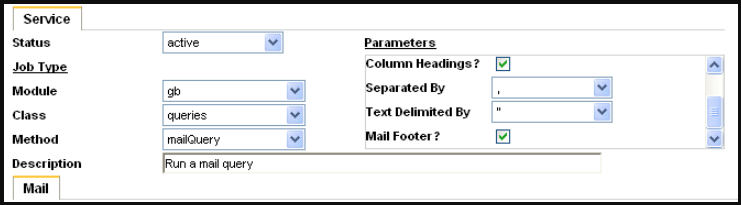
Required Parameters for Event Creation
The following parameters included in the mailQuery are required for event creation and should be included to the left of the attachment field in the SELECT statement of your query.
See also Contract Event Email.
Contract Events
If you are creating a 'Contract' event, the following values can be configured in your query to populate into new event records created by the job.
Use the "Query Field" below in the query to identify the field you are configuring. If the field is not specified in your query, the "Default Value" will be used.
If you don't want users to create events like this from the Contracts / Events tab, make sure the Posting Classes / Details "System Event" check box is checked.
Configurable Fields
Non-Configurable Fields
Driver Events
The following parameters apply if the Event Table "Driver" is selected in the mailQuery job configuration.
When the mailQuery job is run, the system date is used as the event "Date" for any new record that are created.
Non-Configurable Fields
Event Validation
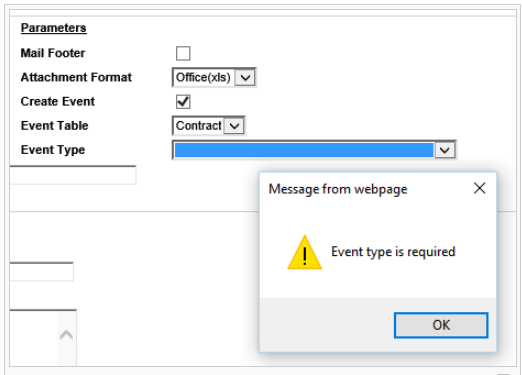
The "Event Type" field is blank for new records, if you forget to select this or remove it from an existing job and the "Create Event" check box is selected, the following warning will appear;
Scheduler behaviour where ‘Auto send emails’ = ‘OFF’
‘Create Event’ flag OFF
Under this setting, the expectation is the following;
Emails generated from the query are allocated a batch_no,
Sent to the Mail Queue with ‘pending’ status, and
No driver event is created.
It will then be up to the User to select the created batch_no and manually send the emails from the Mail Queue. Once complete, the status of the batch will be updated to ‘sent’.
‘Create Event’ flag ON
Under this setting, the expectation is the following;
Emails generated from the query are allocated a batch_no,
Sent to the Mail Queue with ‘pending’ status, and
One driver event is created with icon
Email will not be able to be sent from the Drivers/Event tab as it is in ‘pending’ status. The ‘Send’ option will disappear.
Client Events
The following parameters apply to events if the selected "Event Table" is 'Client' in the job configuration.
When the mailQuery job is run, the system date is used as the event "Date" for any new record that is created.
Configurable Fields
Non-Configurable Fields
Mail Query for Channels
Mail queries can be set up to send channel specific content. The two types of channel specific content are:
Channel specific logo on Office(xls) report attachments
Channel specific content for the subject and body of the email
To use the channel specific logo on an Office(xls) attachment simply include the field [fm_clients]channel_id in the SELECT part of the mail query.
To the left of attachment if you don't want this field on the report.
To use channel specific mail content from gb_templates simply include channel_id in the table join to gb_templates.
If gb_templates records have been set up for channels you MUST include channel_id in the table join otherwise you will get duplicate mail
Example:
SELECT
  t1.contract_id AS mail_group_by,
  t2.home_email AS recipient_1_to_address,
  t4.mail_sender_name AS sender_name,
  t4.mail_sender_address AS sender_address,
  t4.mail_subject AS subject,
  t4.mail_message AS message,
  t4.mail_message_format as message_format,
  t1.contract_id AS event_contract_id,
  'Email to driver' as event_description,
  t1.contract_id,
  t1.reg_no,
  t1.description,
  t2.given_name AS first_name,
  DATE_FORMAT(t1.reg_renewal, '%D %M %Y') AS 'reg_renewal',
  t1.contract_id AS contract,
  t1.reg_no AS registration,
  t1.description AS contract_description,
  t2.given_name,

-- Note: Assuming the template_id is itself linked to gb_template_attachments, those fixed attachments will be included in the outgoing email
  t4.template_id as template_id_attachments,

-- Note: channel_id only needs to be included when an Office(xls) report attachment is being created and you want it to use a channel specific logo
  t3.channel_id,

-- Note: Each attachment produced by the mailQuery can be named by including attachment_name in the mailQuery.
  CONCAT('Your Reg is: ',t1.reg_no) as attachment_name,

-- Report attachment fields start here
  '' AS _attachment_,

  t3.client_id AS client_id,
  t1.reg_no AS reg_no,
  t1.contract_start AS contract_start

FROM fm_contracts AS t1
INNER JOIN fm_drivers AS t2 ON t2.driver_id = t1.driver_id
INNER JOIN fm_clients AS t3 ON t3.client_id = t1.client_id

-- Note: channel_id must be included in the join condition if additional gb_templates records exist for channels otherwise the mail will double up
INNER JOIN gb_templates AS t4 ON t4.name = 'pdf_contract_event_email_message' AND t4.sub_name = 'REGDUE' AND t4.channel_id = t3.channel_id

WHERE t1.reg_renewal=  DATE_ADD(CURDATE(), INTERVAL 45 DAY)
AND t2.home_email != ''
AND (t1.suspend_date = '0000-00-00' OR t1.suspend_date > DATE_ADD(CURDATE(), INTERVAL 45 DAY))
ORDER BY t2.driver_id ASC;
System Errors
Details about error code and its troubleshooting information.
Troubleshooting
mailQuery Event Email - created without an email icon
An event email can be created without a corresponding Mail Queue record in the following circumstances
It was created from a mailQuery scheduler job
The recipient_1_to_address in the query is blank.
An email record cannot be created in this situation, because you can't re-send a mailQuery email from an Event tab.
To fix this, check where the required email address comes from and update the source record. (E.g. Client contact, Driver, etc).
Was this helpful?
Still need help? Ask the team