Funds Check
Funds Check
The Funds Check has been designed for use when the contract is a novated lease.
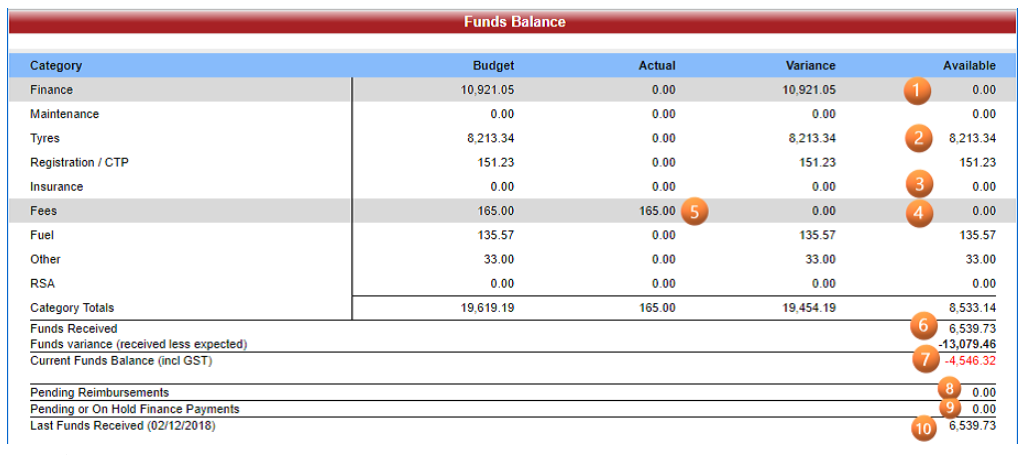
If the Funds Check feature is configured, the icon [Funds Check] is displayed in the Contracts Header and the Approvals Header. If clicked, a pop-up window displays the Budgets, Actuals, Receipts and Available Funds for a contract. The Funds Check window shows similar information to a Driver Report, but there is an extra column where the "Available" amounts are shown.
If posting a claim would put a contract's balance into shortfall, you can warn the user, or prevent the user from posting the claim.
You can create a scheduler job to check failed claims and then post them automatically once they pass the funds check validation.
Schedule reports that use Funds Check values by using the funds_check placeholder library.
The values displayed in the Funds Check window can also be retrieved with the API Perform a contract funds check.
Transaction Status
For Billing and Receipt transactions, only posted transactions will be included.
For Payment and Maintenance transactions, posted, pending and history only transactions will be included.
For on hold payment records are counted into the Funds Check screen values if they fall within the current month (the same as pending transactions).
Note: If a maintenance record has a Status of 'History Only' and a Recharge flag of 'Y', the record is excluded from the reporting and calculations. This is consistent with existing Driver Report behaviour.
Funds Check Categories and Flags
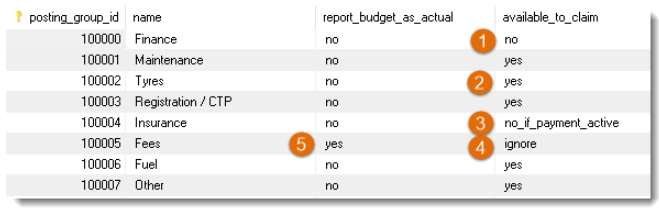
These are recorded in the qt_funds_check_categories table.
Funds Check Pop-up
Funds Check features explained (10 points diagram reference).
Claim Validations
Claim validations function on the Contracts / Claims tab only. The Approvals / Approval tab only displays the Funds Check icon.
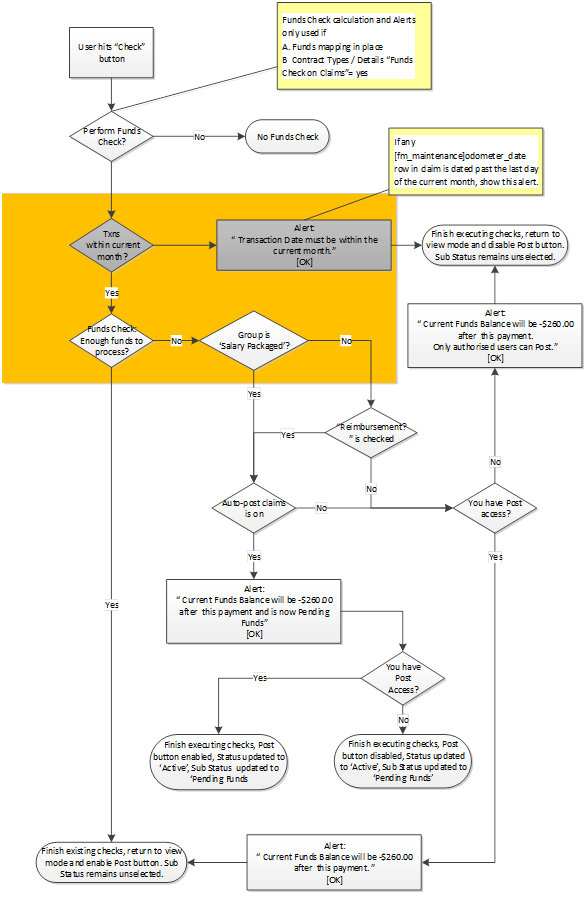
"Funds Check on Claims" must be selected for the contract
Funds Check table mapping must be in place
All claim rows must be dated within or before the current calendar month
If the claim is not a Reimbursement, "Current Funds Balance (incl GST)" must be positive
If the claim is a Driver Reimbursement, "Current Funds Balance (incl GST)" less the Claim "Total" must be positive
Claim Alerts
Claim alerts are available on the Contracts / Claims tab only. The Approvals / Approval tab only displays the Funds Check icon.
If a claim fails a funds check and the user is 'admin' role, the user will be warned, but can proceed to post the claim
If a claim fails a funds check and the user is not 'admin' role, the user will be warned, but cannot proceed to post the claim
If Contract / Details "Auto Post on Claims" is on and the claim fails the Funds Check, the claim will be saved at 'Active' Status and 'Pending Funds' Sub Status
Note 1: The roles that can post claims that fail the Funds Check can be configured in Role Restrictions
Note 2: To use "Auto Post on Claims", the statuses must be configured in the fm_approvals_sub_statuses table and an autoPostClaims scheduler job must be scheduled.
Funds Check Setup
The Funds Check has been designed for use when the contract is a novated lease.
To use the Funds Check feature, you need a report map that links each Posting Class to a Category. Each Category also needs to be configured.
The report map is also required for the following features:
The Finalise button
The Transactions Report
The Driver Portal - Vehicle Balance with Transactions screen
Contact your Account Manager to arrange this.
Funds Check on Claims
If you want to check and prevent claims that fail the funds check validation from being posted, go to Contract Types / Details and check on "Funds Check on Claims". If this is checked, only an 'admin' role user can post a claim that fails the funds check. If "Funds Check on Claims" is unchecked, no alerts or restrictions will occur.
Check that the role restriction entries are correct for your organisation. An entry is required for each role that should be prevented from posting claims that fail the Funds Check.
Auto Post on Claims
If in use, when claims do not pass the funds check validation, they will be updated to 'Pending Funds' sub status.
A claim in this sub status can still be posted if the user's role has been configured to allow it.
These claims are then checked by a scheduler job (usually run once a day) and posted if they pass the funds check validations.
The claim will then be picked up in the next run of the Reimbursements (ABA) file.
Set-up Steps
Check on the Contract Types / Details "Funds Check on Claims" check box
Check on the Contract Types / Details "Auto Post on Claims" check box
Make sure the sub statuses records 'Pending Funds' and 'Posting Failed' are set-up in fm_approvals_sub_statuses
Set-up the scheduler job autoPostClaims so it is active and runs nightly
Job Outcomes
There are three things that could happen to a claim when this job runs:
The claim passes the funds check validation and is 'Posted'
The funds check validation fails and the claim remains at 'Active' status and 'Pending Funds' sub status. It will be checked again the next time the job runs
The claim fails a different check validation during the job run. The claim is updated to the 'Posting Failed' sub status. Investigate these claim records by going to the Contracts / Claim tab and running the check process for the failed claim. This should provide the validation failure message. An example of this happening is the claim failing a GST Checks
Report Map
The report map is also required for the following features:
The Finalise button
The Transactions Report
The Driver Portal - Vehicle Balance with Transactions screen
Contact your Account Manager to arrange for one to be set-up.
Screen Adjustment of Funds Check Pop-up
You can change the screen dimensions of this pop-up using the gb_screen_resolutions table.
SELECT * FROM gb_screen_resolutions WHERE page = 'contracts' AND sub_page = 'funds_check' Funds
Funds Section
The Funds section of the report enables you to show Drivers a complete picture of the cash position of their lease. It displays:
Funds expected: the total value of billed budgets including GST
Funds received: the total value of Pending and Posted funds receipted against the contract
Funds variance: Funds received less Funds expected to show Total Outstanding (this is a debtor value)
Current funds balance: Funds expected less Budget/actual cost variance to show Current funds balance (this is the total owing/owed by the Driver at this time)
Funds Received Calculation Methods
This can be shown in two different ways and is controlled by a Global Control called driverreports_use_receipting_tables_flag. If set to 'yes' the Receipting calculation is used, if set to 'no' the Billing calculation is used.
Receipting Calculation (Catch-e's Recommended Method)
All payments made during the reporting period of the report will be shown as Funds received. This will match the value applied in your accounts.
Billing Calculation
Any payments attributed to invoices billed before or during the reporting period are included in Funds received. Any On Account receipt entries made before or during the reporting period are also included.
GST Checks
The purpose of GST tolerance check is to define the tolerance of GST and control 'login user' from going beyond the tolerance. The Tolerance usually occurs when 'check' process is triggered. In some cases, it occurs while clicking 'save' button (for example: Sale Management / Detail). The default tolerance setting is a $99 value positive or negative.
Example: if the approval is for $5,500 incl GST, the GST component can be anywhere between $401 and $599 before the transaction is failed.
There are usually two types of GST checks:
Check Validation
Save Validation
Check Validation
The check process can be defined into two parts: Row Check and Total Check.
Row Check
While adding any field information if GST value is changed then it will look if the GST Flag is set to 'Y' or 'N'. The GST flag is set in the Contract Type screen. In some screens, there is additional field which controls GST Flag called 'G' which can override the default (for example: Contract / Approval screen). However, in most cases it needs to be set in Contract Type screen.
If the GST Flag is set to 'N', then the value cannot be overwritten and must remain '0.00' only
If the GST Flag is set to 'Y' then the overwritten value must be (net_amount * 0.10) +/- the specified gst_tolerance values
If the above condition fails, it will throw a GST error warning pop-up message.
Total Check
The Total Check is necessary in order to post. The Total check performs many validations. The GST tolerance validation is most common. It looks if the GST used is correct or not. The check is similar to row check but it highlights the field which fails the check process and also performs the same check validation in 'Total GST' (GST flag 'N' is excluded).
It highlights the 'Total GST' and Field line if not correct in light red colour. In addition, it stacks the number of errors. The error is stored in gst_tolerance_error_message.
The check process keeps failing unless the 'GST value' is not corrected.
Save Validation
It is very simple process. While saving it checks for all the GST values and determines if it is within tolerance or not. It throws a pop-up error message which is hard-coded in the system. Only a small fraction of the system does the 'Save' check.
Supporting Screens
Set-up Notes
The tolerance that is applied to each row and the total is set in the global control gst_tolerance.
The default setting is a $99 value positive or negative.
Example: if the approval is for $5,500 incl GST, the GST component can be anywhere between $401 and $599 before the transaction is failed.
If a GST check fails to validate, an error message is generated. The text is stored in the global control gst_tolerance_error_message. This message can be customised to suit you.
New Zealand
Quotes / Vehicle
Initial CTP GST (Number) - The "Initial CTP GST" calculation is varied for NZ systems. When the Quotes / Vehicle "Initial CTP Exc GST" amount is entered, the GST amount will be calculated using the value stored in the Global Control for gst_rate. The calculation is as follows: "Initial CTP Ex GST" * gst_rate = "Initial CTP GST"
Standard Reports
FBT Employee Quarterly (New Zealand Only)
Settings to check:
Useful Queries
SELECT * FROM gb_controls WHERE name IN ('country_code','gst_rate'); SELECT * FROM gl_gst_codes; SELECT * FROM qt_vehicle_types; Reference Data: Qt Variants
This table contains data stored in the qt_variants table.
The List tab shows a summary of key details for the selected "Make" and "Model".
These key details can be updated for the variants of the selected "Model" in bulk on the List tab.
To review or edit a variant's record in detail, hyperlink to the Detail tab. The Detail tab displays the many attributes of a specific variant.